> For the complete documentation index, see [llms.txt](https://docs.limio.com/llms.txt). Markdown versions of documentation pages are available by appending `.md` to page URLs; this page is available as [Markdown](https://docs.limio.com/integrations/populating-salesforce-data/connect-limio-salesforce.md).
# Connect Limio and Salesforce
## How to connect Limio and Salesforce
Limio offers multiple integration options with Salesforce, as described in [Choosing the Right Salesforce Integration](/integrations/salesforce-integrations/choosing-the-right-salesforce-integration.md).
The two primary integration flows are:
* **Limio → Salesforce**: Limio integrates with Salesforce to create new Accounts and Opportunities for online orders. This configuration is generally used to **create and write online order data and updates in Salesforce**.
* **Salesforce → Limio (via** **Limio for Salesforce):** Limio for Salesforce is an optional add-on that allows sales and customer service teams to create quotes, orders, and subscription changes in Salesforce, transferring them to Limio for processing.It may be referred to as either an order management application or a CPQ, depending on the business context.
Regardless of the model, you will need to connect Limio and Salesforce, so you are in the right place. However:
* **Without Limio for Salesforce managed package** (Limio → Salesforce only): Follow **Section 1** to send data from Limio to Salesforce.
* **With Limio for Salesforce managed package** (Salesforce → Limio): Complete **Section 1 and Section 2** to enable bidirectional data flow.
## 1. Connect Limio to Salesforce (without Limio for Salesforce)
This section covers the setup when you want Limio to send data **to** Salesforce (e.g., creating Accounts, Contacts, and triggering Platform Events for online orders). This setup does **not** require the Limio for Salesforce managed package.
### **Pre-requisites:**
* **Limio account:** You will need to login into Limio and have permissions to access the General Settings.
* **Salesforce account:** You will need to login into Salesforce to grant access to Limio. It is best practice for the Salesforce user being used to connect to Limio to be a **System Administrator**. This can be temporary as it is only required for the initial integration in [Step 1.A](#step-1.a-grant-external-access) below. After the integration with Limio, this access can be downgraded to an **integration user** with the **API Enabled** administrative permission checked on.
* **IP Range:** For security purposes, you can check the IP range for delivering webhook events [here](/integrations/setting-up-limio-for-salesforce/install-and-setup/valid-ip-addresses.md), which is also used to set up the External Access between Salesforce and Limio.
### **Step 1.A: Grant External Access**
Go to your Limio application (e.g.`https://{{tenant}}.prod-us.limio.com/`). Click on your persona in the top right corner, navigate to Settings, then select Integration and click the Salesforce button.
Select the Salesforce Endpoint. For a sandbox, it'll be `https://test.salesforce.com/` . For production, it'll be `https://login.salesforce.com/`
You will then be asked to grant Allow Access for Limio to communicate to Salesforce.
{% hint style="warning" %}
If you do not see the Allow Access page and are redirected to Limio Settings, you may be currently logged into a Salesforce environment, which may not be the one you want to connect. In this case, **log out** of your Salesforce instance and try again. If this is still not working, go into the Incognito mode of your browser and follow the step here.
{% endhint %}
Once done, you should see it added to your Integration tab under the Salesforce section.
{% hint style="warning" %}
**Using an Integration User?**
Integration users with API-only profiles may encounter OAuth errors during the connection process.
**Requirements for integration users:**
* The user must have the **"API Enabled"** administrative permission checked on their profile
* The user needs the **Salesforce API Integration** permission set assigned
**Recommended approach:** If you encounter OAuth errors with an integration user, connect with a System Administrator first. After successful connection, you can switch the connecting user's profile to API-only if needed for production use.
{% endhint %}
### **Step 1.B: Configure the Limio Connected App**
After successfully completing Step 1.A, the **Limio Connected App** is created in your Salesforce org. You can optionally configure its policies for security and compliance:
1. Go to **Setup** in Salesforce
2. Search for **Connected Apps OAuth Usage** in Quick Find
3. Find **Limio - Connected App** and click **Install** (recommended for Salesforce Q4 2025 compliance)
4. Click **Manage App Policies** to configure access policies
For detailed configuration options including "Permitted Users" policies and security settings, see:
{% content-ref url="/pages/mowOLe241LGJbz75vpYl" %}
[Install Limio Connected App](/integrations/setting-up-limio-for-salesforce/install-and-setup/install-connected-app.md)
{% endcontent-ref %}
### **Step 1.C: Request Salesforce Plugin Activation from Limio**
Now, we need to start feeding orders into Salesforce. This will use Limio's [Order Orchestration Framework](/integrations/order-orchestration/order-orchestration-framework.md) to sequence correctly order between different systems, for example with Zuora or Stripe, and your Entitlement system. You will need to decide whether you want Limio to enable the following options:
* **Account:** Create Person Account (typical in B2C) or Account/Contact (typical in B2B).
* **Duplicate Rules:** Whether you use any Duplicate Rules in Salesforce, as Limio can leverage them to identify the right Accounts at the time of Order. You can say No if you're not sure - we can always change this later.
* **Salesforce Platform Events:** Whether you plan to use Salesforce Platform Events to populate your data flexibly in Salesforce. Typically the answer is yes!
More details on those features are available here:
{% content-ref url="/pages/cT5goSLOjmTGW4WT373R" %}
[How Limio Updates Salesforce Data](/integrations/populating-salesforce-data/limio-updates-salesforce.md)
{% endcontent-ref %}
To enable this with the necessary configuration, contact to request activation of the Limio Salesforce Plugin from Limio Support.
Please copy paste the below in your email:
* Template: *"Please setup the Salesforce Order Plugin v3 in Limio to start sending orders to Salesforce with the following options:*
* *\[A. Create Salesforce Person Account] OR \[B. create Salesforce Account/Contact]*
* *\[A. I currently use Duplicate Rules] OR \[B. I don't use Duplicate Rules in Salesforce]*
* *\[A. I will use Limio Salesforce Platform Events to populate my data in Salesforce] OR \[B. I won't use Limio Salesforce Platform Events]*
Once setup, you will see Salesforce setup in Settings > Order Processing Configuration.
{% hint style="info" %}
**Any issues?** Activation of Salesforce can take up to 20 minutes. If you encounter the following error in Limio: *“No default instance, please select a default external key for this service”,* this error usually indicates that the Salesforce environment is not fully connected to Limio. If the connection was established recently, it might still be in the syncing process. If the issue persists beyond this timeframe, contact for help.
{% endhint %}
### **Step 1.D: (Optional) Customise your Limio → Salesforce integration**
Salesforce is often highly customized, with unique business processes for recognizing online orders and subscription changes. To provide full flexibility without the need for custom code, we leverage two key Salesforce frameworks:
1. **Salesforce Platform Events**\
Platform Events stream all online orders and subscription changes directly to Salesforce, enabling real-time updates.
2. **Salesforce Lightning Flows**\
Lightning Flows offer a no-code interface to map online orders and subscription changes to your Salesforce data, streamlining your business processes.
To learn how to customise your integration, go to:
***
## 2. Connect Limio for Salesforce to Limio (with managed package)
This section covers the setup when you have the **Limio for Salesforce managed package** installed and want to enable order flows between Salesforce and Limio. This allows customer service agents and sales teams to create orders, quotes, and manage subscriptions directly from Salesforce.
{% hint style="info" %}
**Pre-requisite:** You must have already installed the [Limio for Salesforce](/integrations/salesforce-integrations/managed-package-overview.md) Managed Package into your Salesforce environment before proceeding.
{% endhint %}
Once the managed package is installed, you will need to set up an **authentication provider** and **named credentials** in Salesforce.
This will allow you Limio for Salesforce to send orders from Salesforce into Limio. This process is entirely done from Salesforce, though you will need to have some Limio information handy.
To connect Limio for Salesforce to a Limio tenant, we use the following native Salesforce framework:
* **Authentication Provider:** The authentication provider allows you to set up a trust relationship between Limio and Salesforce via OpenID Connect, a universal identity federation framework.
* **Named credentials:** Named credentials then enables you, the person with a Limio account going through this setup, to authenticate yourself in Limio and enable Salesforce to have External Access to Limio.
In other words, this process enables you to authorise Salesforce to talk with Limio and vice versa. This guide will walk you through the process.
### **Pre-requisites:**
* **Salesforce Setup access:** You will need to use the Salesforce Setup. This will require usually administrator permission or profile in Salesforce. If you cannot see Salesforce Setup in your org, contact your Salesforce administration.
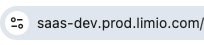
* **Limio Commerce account:** To do this setup, you will need to already have a user in Limio (i.e. within your Limio application: `https://{{tenant}}.prod-us.limio.com`). You will be asked to login via your username as part of this setup, so keep your Limio username and password handy.
* If you're not sure what your Limio application URL is, it's very easy. Just check the URL in your browser, for example:
* 
* **Receive your Consumer Key and Secret from Limio:** Request from Limio Support at your Consumer Key and Consumer Secret by clicking [here](https://docs.limio.com/developers/).
Note that URL to do this setup will vary depending on your hosting (EU or US).
### **Step 2. A: Setup the Authentication Provider in Salesforce**
1. Head to , then once logged-in, go to **Salesforce Setup** in the upper right corner
1. 
2. Search for Auth Providers 1
1. 
3. Create a new Auth Provider by clicking the 'New' button.
* Select **Open ID Connect** as the Auth Provider
4. Populate the fields:
1. Enter a **Name**, you can use 'Limio' or any different name like your tenant or domain.
2. Fill in the **Consumer Key** and **Consumer Secret** with values provided by Limio Support (see [Pre-Requisite](https://docs.limio.com/integrations/populating-salesforce-data/connect-limio-salesforce)).
3. Provide the following values:
**Authorize Endpoint URL:**
US: `https://{{tenant}}.prod-us.limio.com/api/sf/oauth2/authorize?authProvider=app`
EU: `https://{{tenant}}.prod.limio.com/api/sf/oauth2/authorize?authProvider=app`
**Token Endpoint URL:**
US: `https://{{tenant}}.prod-us.limio.com/api/sf/oauth2/token?authProvider=app`
EU: `https://{{tenant}}.prod.limio.com/api/sf/oauth2/token?authProvider=app`
4. Keep **Send access token in header** and **Include Consumer Secret in API responses** ticked.
### **Step 2. B: Setup the Named Credentials in Salesforce**
Follow the steps outlined in:
{% content-ref url="/pages/e6bFCcnBwIMYaDzgled5" %}
[Enabling new Named Credentials](/integrations/setting-up-limio-for-salesforce/detailed-salesforce-setup/named-credentials-package.md)
{% endcontent-ref %}
---
# Agent Instructions
This documentation is published with GitBook. GitBook is the documentation platform designed so that both humans and AI agents can read, navigate, and reason over technical content effectively. Learn more at gitbook.com.
## Querying This Documentation
If you need additional information that is not directly available in this page, you can query the documentation dynamically by asking a question.
Perform an HTTP GET request on the current page URL with the `ask` query parameter, and the optional `goal` query parameter:
```
GET https://docs.limio.com/integrations/populating-salesforce-data/connect-limio-salesforce.md?ask=&goal=
```
`ask` is the immediate question: it should be specific, self-contained, and written in natural language.
`goal` is optional and describes the broader end goal you are ultimately trying to accomplish on behalf of the user. GitBook uses it to tailor the answer towards what is most useful for that goal.
The response will contain a direct answer to the question and relevant excerpts and sources from the documentation.
Use this mechanism when the answer is not explicitly present in the current page, you need clarification or additional context, or you want to retrieve related documentation sections.