> For the complete documentation index, see [llms.txt](https://docs.limio.com/llms.txt). Markdown versions of documentation pages are available by appending `.md` to page URLs; this page is available as [Markdown](https://docs.limio.com/components/component-library/modular-checkout-components/modular-checkout-subcomponents-in-form/form-subcomponent-address-fields.md).
# Form Subcomponent: Address Fields
The Address Fields subcomponent can only be used within the [Form component](https://docs.limio.com/components/component-library/modular-checkout-components/component-checkout-form.md).
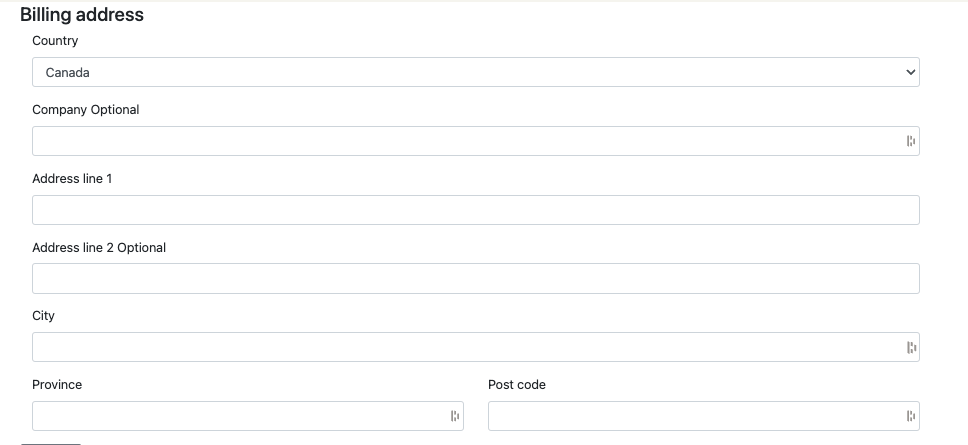
The Address Fields subcomponent allows for collection of a customers address details, which can be used to store or update their billing address and/or delivery address. It can be used as part of an acquisition flow, or within self-service.
## Controlling which fields to display
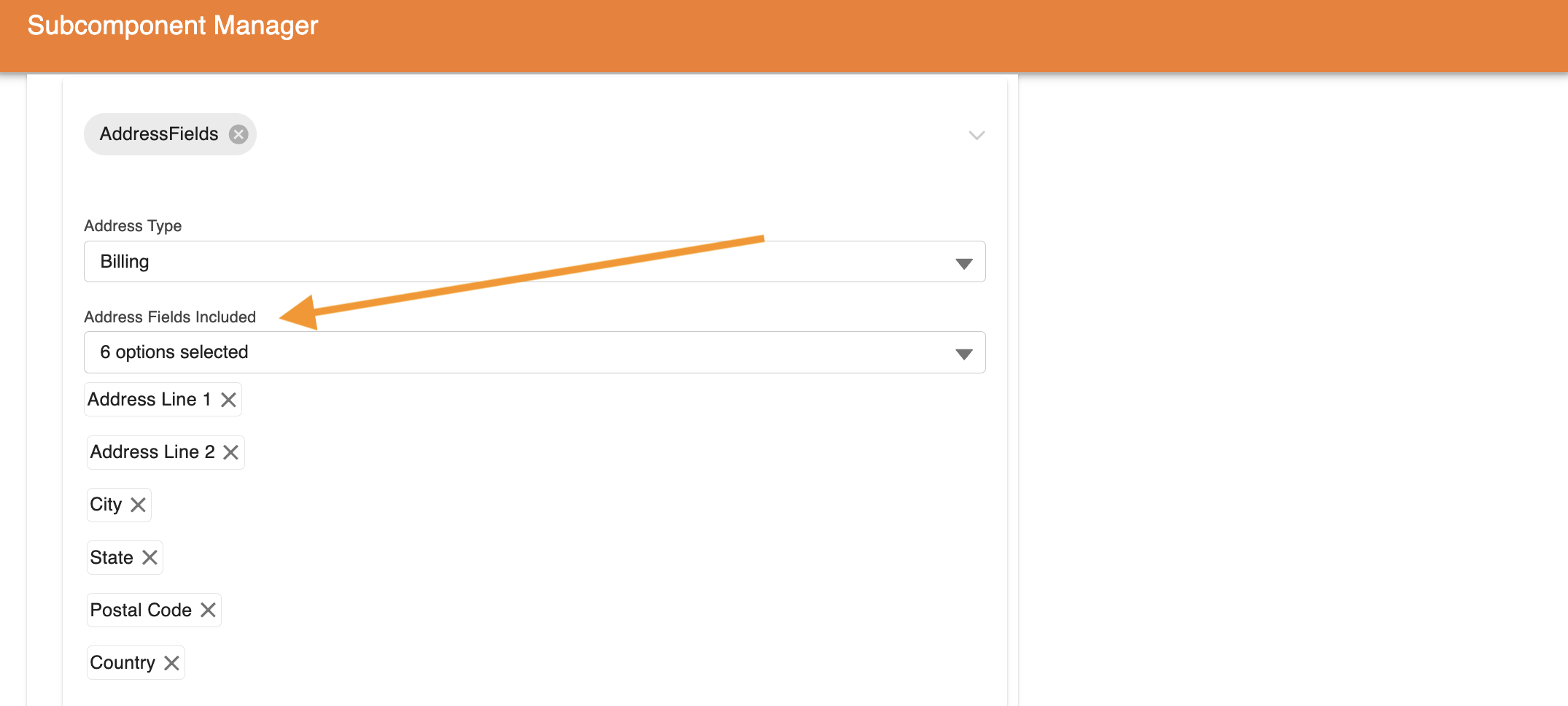
It is possible to use as many or as few of the fields available in the address fields. To add or remove a field you can update the selection in the **Address Fields Included** prop.
## Rearranging the order of the fields
The order of which the fields are listed in **Address Fields Included** prop are the order which they will display. To rearrange the the fields, you can remove and re-add them in the desired order.
## Collecting a billing address and a delivery address
One Address Fields subcomponent collects one address. The **Address Type** prop sets which address it collects: Billing (`billingDetails`, the default) or Delivery (`deliveryDetails`). To collect the two addresses, add two Address Fields subcomponents to the Checkout Form, and set a different **Address Type** on each one.
The **Address Type** is the first part of each field name. When the customer submits the Checkout Form, Limio writes the value of each field into the order at the path that the field name gives.
| Address Type | Field names | Location in the order |
| ------------ | ------------------------------------------------------------------------------------------------------------------------------------------------------------------------------------------- | --------------------- |
| Billing | `billingDetails.address1`, `billingDetails.address2`, `billingDetails.city`, `billingDetails.state`, `billingDetails.postalCode`, `billingDetails.country`, `billingDetails.company` | `billingDetails` |
| Delivery | `deliveryDetails.address1`, `deliveryDetails.address2`, `deliveryDetails.city`, `deliveryDetails.state`, `deliveryDetails.postalCode`, `deliveryDetails.country`, `deliveryDetails.company` | `deliveryDetails` |
The form does not show a field that is not in **Address Fields Included**. It shows the company field only when **Show Company Field?** is on.
### Showing the delivery address only for a product with delivery
The Address Fields subcomponent does not hide itself when the basket has no product with delivery. To show the Delivery subcomponent only when it is necessary, add the **Delivery product in basket?** condition to it. See [Managing Conditionality in Subcomponents](https://docs.limio.com/components/component-library/modular-checkout-components/managing-conditionality-in-subcomponents.md).
### Using the delivery address as the billing address
On a Delivery subcomponent, the prop **Use same address checkbox to fill billing address with delivery address?** adds a checkbox below the address. The checkbox is selected by default. While the checkbox is selected, the form hides the Billing subcomponent, and Limio copies the delivery address to the billing address of the order.
### If an address is empty in the order
1. Make sure that the Checkout Form has an Address Fields subcomponent for that address, with the correct **Address Type**.
2. Make sure that the conditions on the subcomponent do not hide it.
3. Make sure that **Address Fields Included** contains the fields that you expect.
4. Make sure that you published the page after you changed the form.
## Component Props
| id | Label | Type | Default | Further Info |
| -------------------------- | ---------------------------------------------------------- | ------- | --------------------------------- | --------------------------------------------------------------------------------------------------------------------------------------------- |
| addressType | Address Type | string | billingDetails | The type of address the form will update. Options are billingDetails and deliveryDetails |
| heading | Heading | string | Billing address | Optional headin, visible to the user |
| countryFieldOnTopOfAddress | Show country field at the top of billing/delivery details? | boolean | false | Position where the country input will display. If false, it will appear at bottom. |
| address1Label | Address line 1 label | string | Address line 1 | Label text |
| address2Label | Address line 2 label | string | Address line 2 | For countries that use a Box field (e.g., Belgium), Loqate auto-fills the Box value into Address Line 2, combining it with any existing text. |
| cityLabel | City label | string | {{city\_name\_type}} | Label text |
| stateLabel | County / State label | string | {{state\_name\_type}} | Label text |
| postalCodeLabel | Postal code / ZIP code label | string | {{zip\_name\_type}} | Label text |
| countryLabel | Country label | string | Country | Label text |
| companyLabel | Company label | string | Company | Label text |
| showCompanyField | Show Company Field? | boolean | false | If true, an input to collect Company will be displayed |
| invalidAddressMessage | Invalid address message | string | Address is required | Validation message |
| invalidCityMessage | Invalid city message | string | City is required | Validation message |
| invalidStateMessage | Invalid state/county message | string | {{state\_name\_type}} is required | Validation message |
| invalidPostalCodeMessage | Invalid zip/postal code message | string | {{zip\_name\_type}} is required | Validation message |
| componentId | Component Id | string | address-fields | Unique component-id |
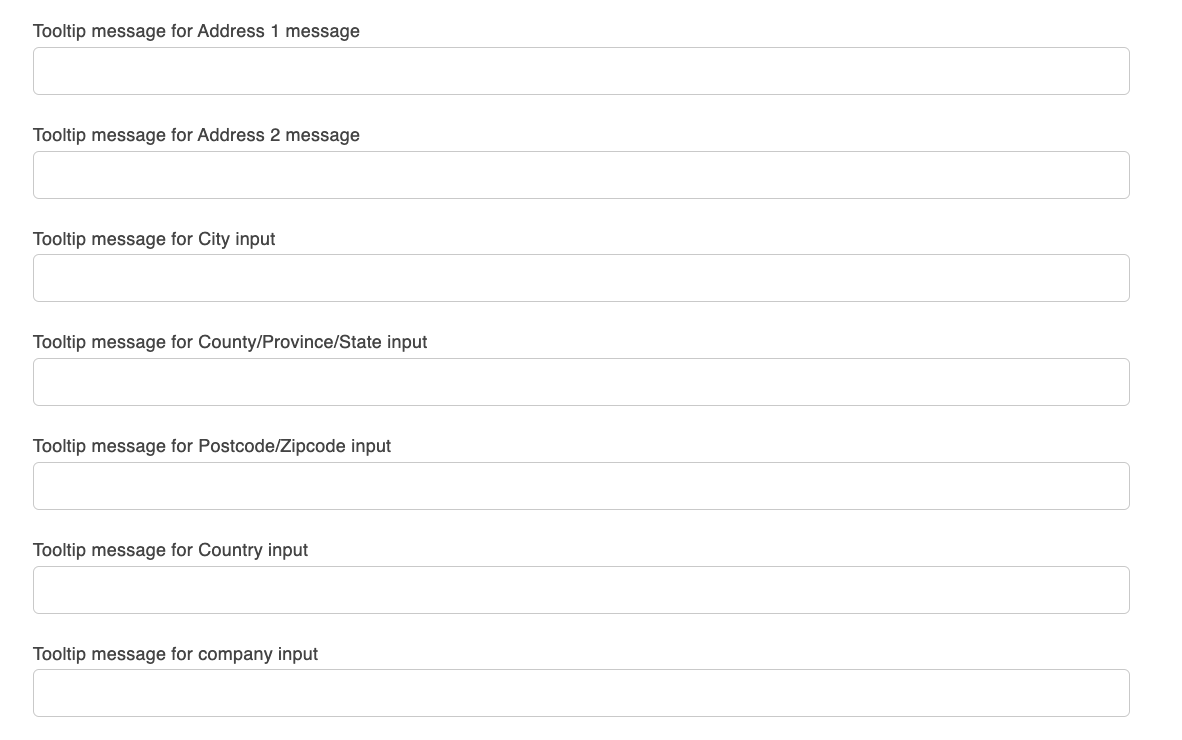
You are also able to enter in a tooltip for each address field. Each of these are String inputs and are empty by default. When populated, these will display in the checkout when an end user hovers over the tooltip icon by the field.
## Country Field behaviour
The country field dynamically manages which countries are available for selection and which country is pre-selected based on the user's location and the offer's allowed countries.
### Selection Logic
The country field follows these rules:
1. **Pre-selection based on origin country**: If the user's origin country (from `order.country`) is included in the list of allowed countries for the offer, it will be automatically pre-selected.
2. **No pre-selection for excluded countries**: If the user's origin country is not in the allowed countries list, no country will be pre-selected. This allows users outside the allowed regions (e.g., someone on holiday or testing from a different location) to manually select a valid country.
3. **Available options**: The dropdown options are restricted to only the allowed countries for that specific offer.
---
# Agent Instructions
This documentation is published with GitBook. GitBook is the documentation platform designed so that both humans and AI agents can read, navigate, and reason over technical content effectively. Learn more at gitbook.com.
## Querying This Documentation
If you need additional information that is not directly available in this page, you can query the documentation by asking a question.
Perform an HTTP GET request on the following URL with the `ask` and `goal` query parameters:
```
GET https://docs.limio.com/components/component-library/modular-checkout-components/modular-checkout-subcomponents-in-form/form-subcomponent-address-fields.md?ask=&goal=
```
`ask` is the immediate question: it should be specific, self-contained, and written in natural language.
`goal` is what the user is ultimately trying to achieve, the reason they need the answer. Sharing it helps GitBook give you a better, more relevant answer. A goal is most helpful when it describes the outcome the user wants rather than restating the question. For example, with `ask=how do I create an API token`, a goal like `automate deployments from our CI pipeline` lets GitBook tailor the answer to that use case.
The response will contain a direct answer to the question and relevant excerpts and sources from the documentation.
Use this mechanism when the answer is not explicitly present in the current page, you need clarification or additional context, or you want to retrieve related documentation sections.