> For the complete documentation index, see [llms.txt](https://docs.limio.com/llms.txt). Markdown versions of documentation pages are available by appending `.md` to page URLs; this page is available as [Markdown](https://docs.limio.com/salesforce/support/troubleshooting/prevent-duplicate-orders.md). Agents can also search and read this documentation through its [MCP server](https://docs.limio.com/~gitbook/mcp).
# Prevent Duplicate Orders
### **LFS version**: requires v12.09 or later
### Context:
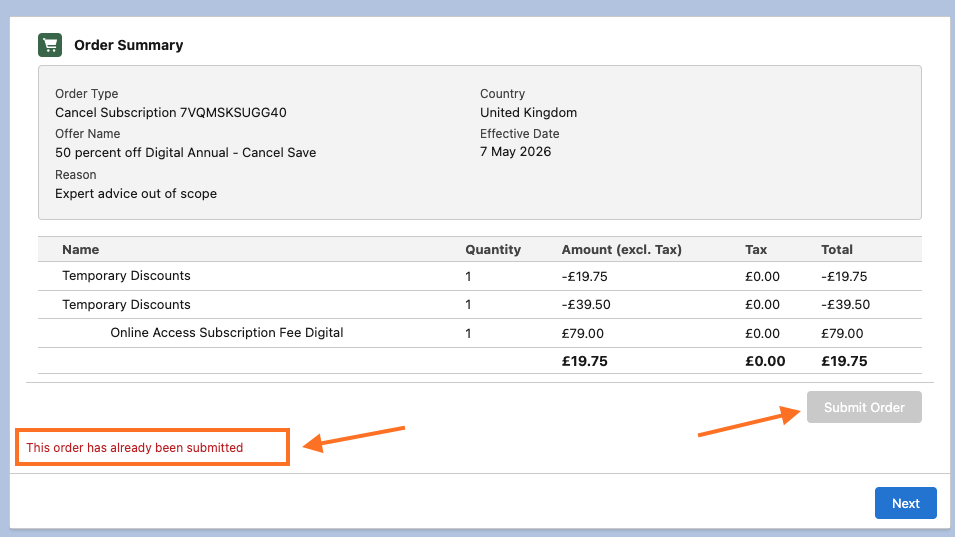
When an agent reaches the final **Order Summary Screen** in any of the Limio flows and clicks the **Submit** button, a callout is triggered to the Limio system to publish the order. After clicking **Submit**, the button becomes greyed out and unclickable to prevent multiple submissions.
However, a specific issue arises if the agent clicks **Next** after clicking **Submit** to navigate through the flow during order processing.
If the **Next** button is clicked:
1. The component on the Order Summary Screen **reloads**.
2. The **Submit** button becomes enabled again.
3. The ongoing order context is **lost**:
* Agents cannot view the loading events of the ongoing order.
* Agents might inadvertently click **Submit** again, submitting a duplicate order.
This behavior can lead to unnecessary issues, including duplicate submissions and associated consequences.
{% hint style="info" %}
From v14.41, the packaged Limio Acquisition Journey shows the order summary in the **Limio Order Confirmation Subflow**. This subflow already sets the self-reference that this page describes. A copy of the Acquisition Journey made on v14.41 or later does not need these steps.
{% endhint %}
### Solution: Introducing `submittedOrderFlag`
To address this problem, we introduced a new property called `submittedOrderFlag` in the **flowOrderSummary** component and an accompanying input for self-reference. Here’s how it works:
1. `submittedOrderFlag`: Tracks whether an order has already been submitted.
2. **Self-Reference Input**: Allows the flow to persist the submission status in the flow context.
### Steps to Implement
1. **Add Self-Reference to the Input**:
* Open the flow in the Flow Builder.
* Locate the **flowOrderSummary** component.
* Add the self-reference input to the component to check for an already submitted order.
2. **Save a New Flow Copy**:
* After making the changes, save the flow with a new version.
3. **Activate the Updated Flow**:
* Activate the new version to ensure it takes effect.
### How It Works
1. **Order Submission Triggers the Flag**\
When the agent submits an order, the `submittedOrderFlag` is automatically set in the flow context.
2. **Submit Button Gets Disabled**\
With the flag set, the **Submit** button is immediately greyed out and becomes unclickable. This visually confirms that the submission is in progress or completed.
3. **Reload-Resistant UX**\
If the component reloads, for example during navigation, the `submittedOrderFlag` remains in context, and the **Submit** button stays disabled.
If the agent clicks **Next** before Limio answers, the screen does not move on. A message appears stating:\
“This order has already been submitted”
### Why This Matters
This mechanism ensures:
* **No accidental duplicate submissions** — even during reloads.
* **Clear visual feedback** — both the disabled button and confirmation message reinforce submission state.
### **Note**
**Navigating Back Re-enables Submission**\
If the agent clicks **Previous**, the flow treats this as a change to the order. In this case:
* The `submittedOrderFlag` is **cleared**.
* The **Submit** button becomes active again, allowing the agent to submit a **new version** of the order.
---
# Agent Instructions
This documentation is published with GitBook. GitBook is the documentation platform designed so that both humans and AI agents can read, navigate, and reason over technical content effectively. Learn more at gitbook.com.
## Querying This Documentation
If you need additional information that is not directly available in this page, you can query the documentation by asking a question.
Perform an HTTP GET request on the following URL with the `ask` and `goal` query parameters:
```
GET https://docs.limio.com/salesforce/support/troubleshooting/prevent-duplicate-orders.md?ask=&goal=
```
`ask` is the immediate question: it should be specific, self-contained, and written in natural language.
`goal` is what the user is ultimately trying to achieve, the reason they need the answer. Sharing it helps GitBook give you a better, more relevant answer. A goal is most helpful when it describes the outcome the user wants rather than restating the question. For example, with `ask=how do I create an API token`, a goal like `automate deployments from our CI pipeline` lets GitBook tailor the answer to that use case.
The response will contain a direct answer to the question and relevant excerpts and sources from the documentation.
Use this mechanism when the answer is not explicitly present in the current page, you need clarification or additional context, or you want to retrieve related documentation sections.