> For the complete documentation index, see [llms.txt](https://docs.limio.com/llms.txt). Markdown versions of documentation pages are available by appending `.md` to page URLs; this page is available as [Markdown](https://docs.limio.com/salesforce/setting-up/filtering-rules/customise-table-columns.md). Agents can also search and read this documentation through its [MCP server](https://docs.limio.com/~gitbook/mcp).
# Catalog Table Columns
**LFS Version requirement:** v11.42 or later
{% hint style="info" %}
The **Update** action and the **Change Timing** column are both available from v14.10. From v14.19, the Change Timing choice is offered for the Update and Cancel actions only. See [Change Timing](https://docs.limio.com/salesforce/servicing-subscriptions/manage-subscriptions-flow/subflow-update-subscription/change-timing.md).
{% endhint %}
LFS has a built-in custom object, **Limio - Offers Catalog Table Config**. With it, Salesforce admins set the columns of the LFS Offers Catalog for each action.
### Managing Access
Users with the **Assisted Sales - Admin** or the **Limio - Manage configuration objects in LFS** permission set can create and edit the Offers Catalog Table Configs. Users with the **Assisted Sales - User** permission set have read-only access to the custom object. They need this access to see the configured columns in the LFS offer catalog.
### Configuring the object
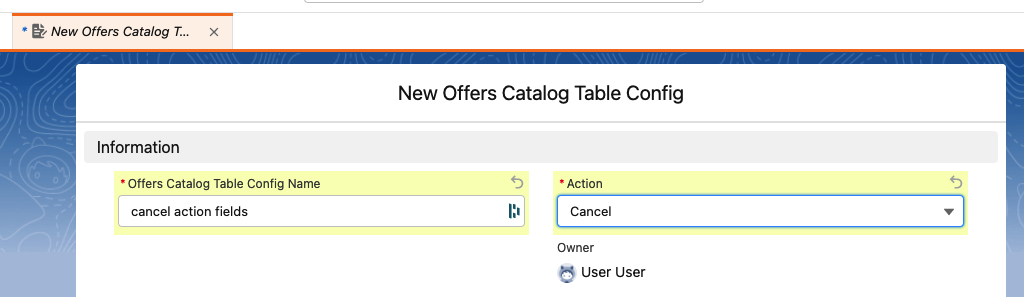
To configure such record, start by creating a new record in the custom object "Offers Catalog Table Config"; choose a name and the action this configuration applies to.
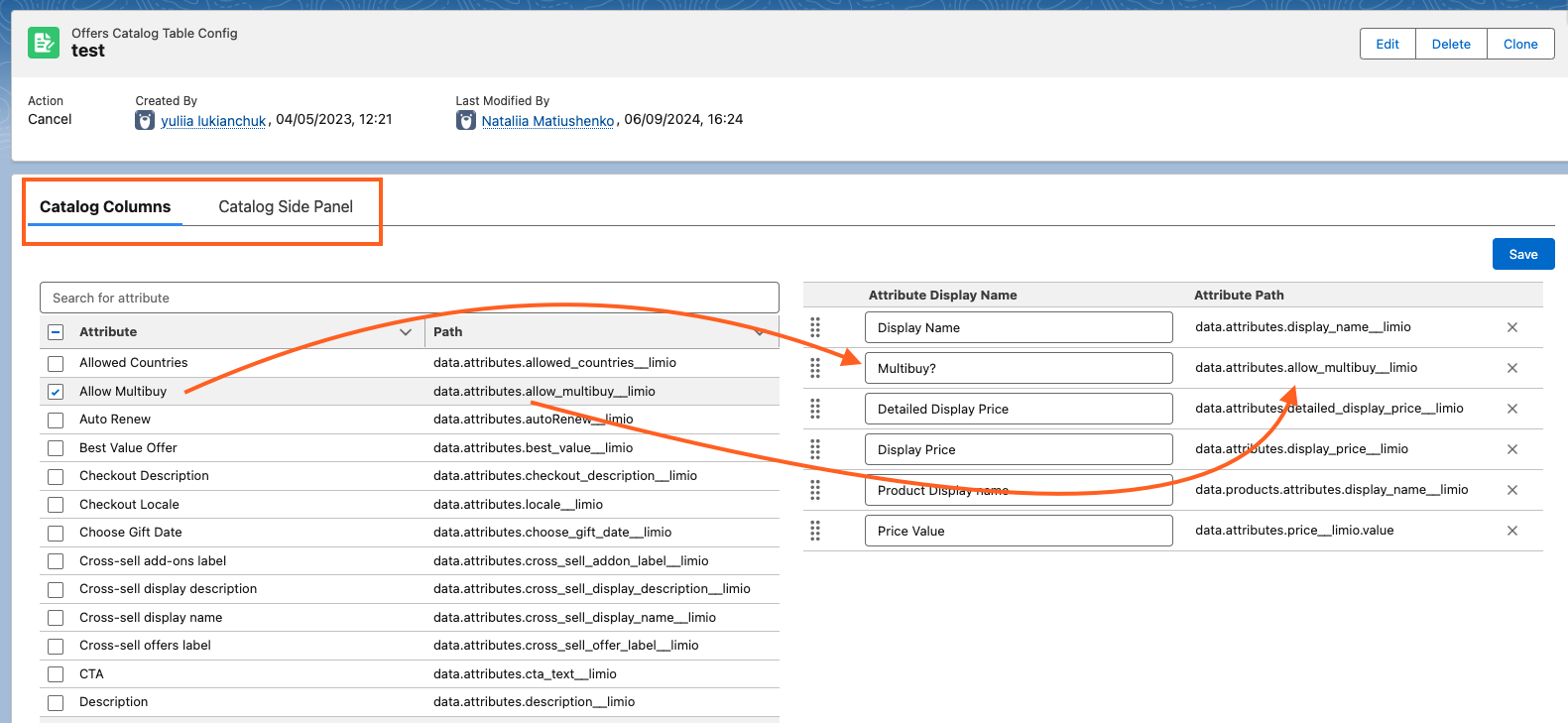
Once saved, the user will be presented with 2 sections, one for configuring the offers table and its columns, and one for configuring the side panel in the same layout.
From package version **12.98** the view was changed into two tabs— Catalog Columns and Catalog Side Panel —for a better use of horizontal space. Updated Offer Catalog Table Config also now displays the full path of selected attributes for better clarity and context, making it easier to trace original values even after relabelling.
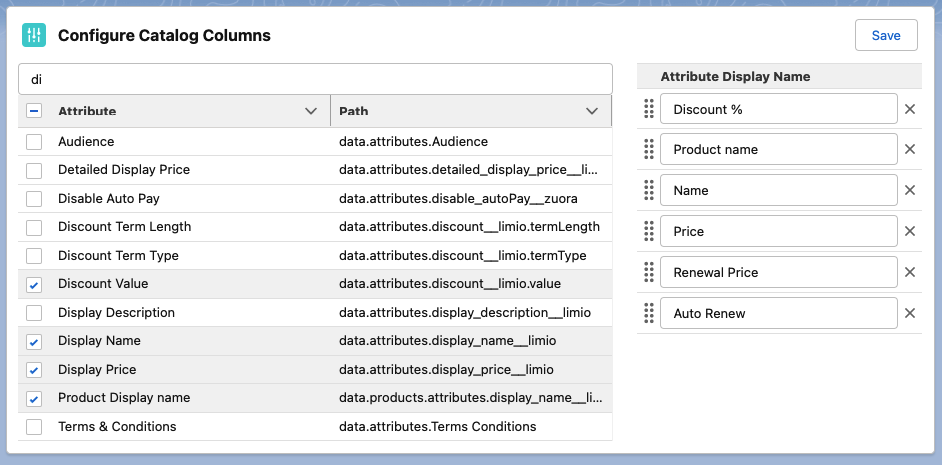
In each section you can search for the attribute to use; this list comes from the limio attributes list and it's tailored to each individual limio environment. By selecting an attribute from the list in the table, this is added to the right hand side "Attribute Display Name" section, where all selected attributes appear in a re-orderable list.
Each new item selected from the table is appended at the bottom of the list. Within this list it's possible to re-label the attribute (for a more user friendly name) and re-order the list by simply dragging and dropping each item in the relevant position.
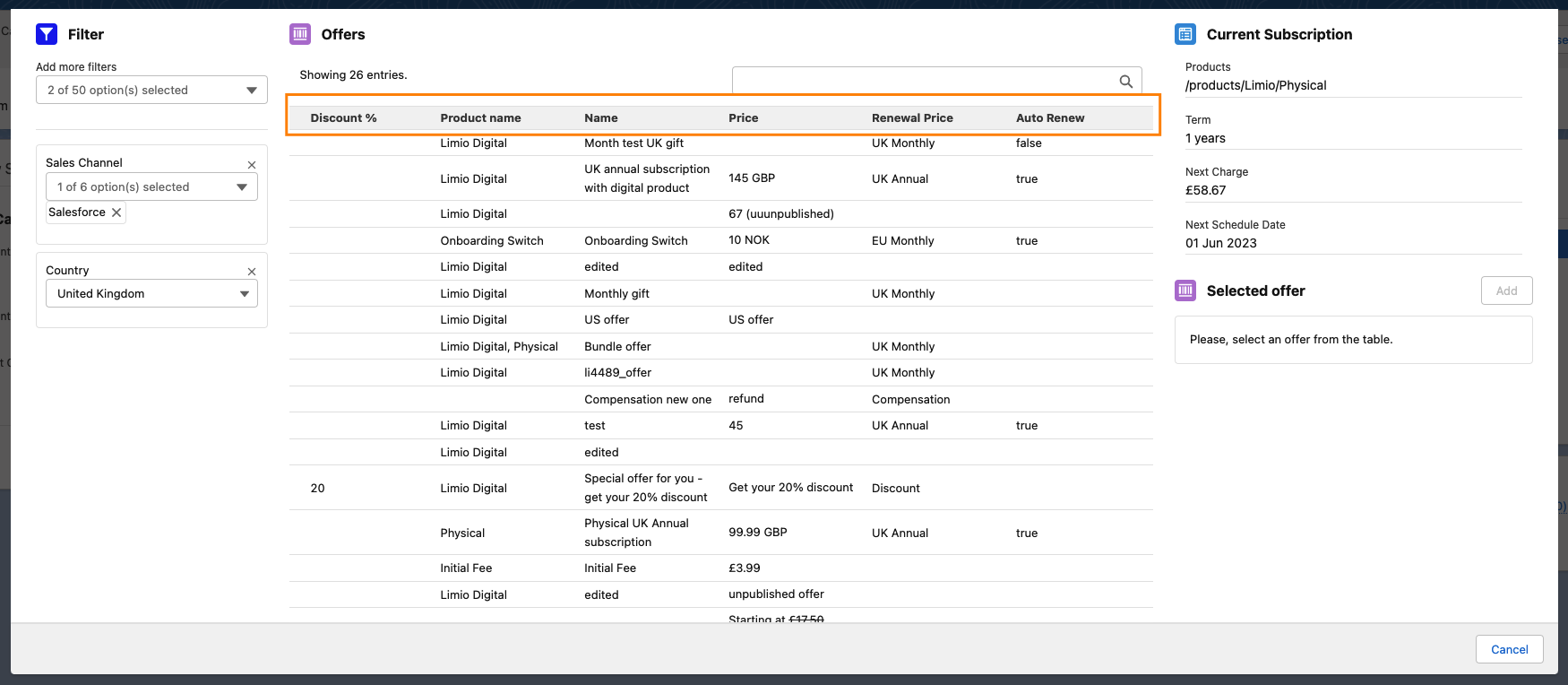
Clicking the Save button saves this configuration, that is going to be what agents see in the Offer Catalog whenever performing the corresponding action. In the above example, when an agent performs a Cancel action, when browsing the offer catalog they are presented with offers displaying the selected columns.
Since this configuration is contextual to the action being performed, the same won't apply when performing another action, such as a switch or renew.
### Duplicates Management
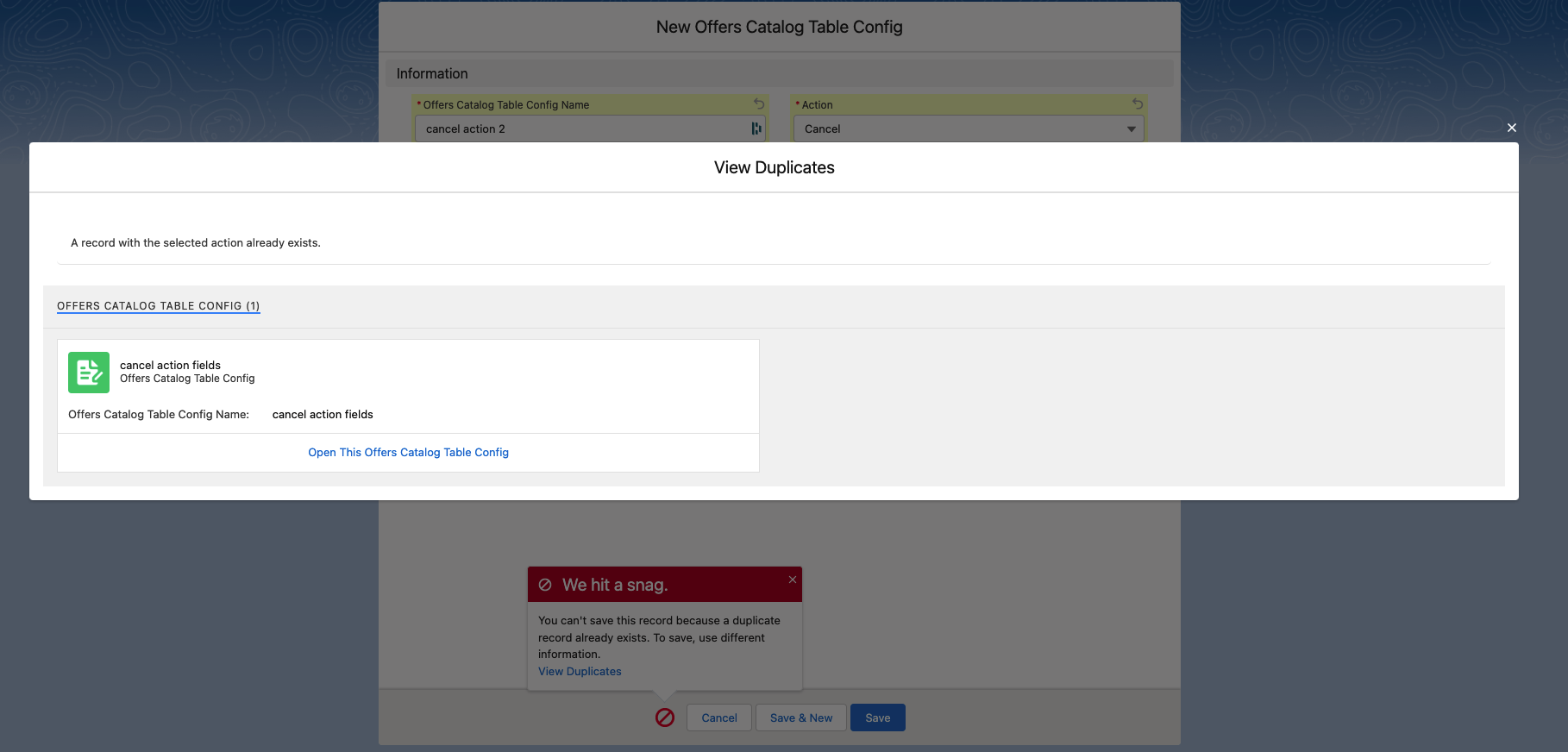
A duplicate rule allows one record for each action. When a record for the action already exists, the rule blocks the save. It shows "A record with the selected action already exists."
This allows the Salesforce admin to amend the existing record, rather than duplicating it.
### Default columns
When the Offers Catalog Table configuration has no columns for the action, the system uses a default set of columns. These fallback columns are: **Name**, **Price**, **Order Type**, and **Product Name**. For the Update action, the defaults also include **Change Timing**.
Specifically, the columns are mapped to the following data paths:
**name**,
**data.attributes.display\_price\_\_limio**,
**data.attributes.order\_type,**
**data.products.0.attributes.display\_name\_\_limio**.
This fallback logic guarantees that users always see essential campaign information even when no custom configuration exists.
---
# Agent Instructions
This documentation is published with GitBook. GitBook is the documentation platform designed so that both humans and AI agents can read, navigate, and reason over technical content effectively. Learn more at gitbook.com.
## Querying This Documentation
If you need additional information that is not directly available in this page, you can query the documentation by asking a question.
Perform an HTTP GET request on the following URL with the `ask` and `goal` query parameters:
```
GET https://docs.limio.com/salesforce/setting-up/filtering-rules/customise-table-columns.md?ask=&goal=
```
`ask` is the immediate question: it should be specific, self-contained, and written in natural language.
`goal` is what the user is ultimately trying to achieve, the reason they need the answer. Sharing it helps GitBook give you a better, more relevant answer. A goal is most helpful when it describes the outcome the user wants rather than restating the question. For example, with `ask=how do I create an API token`, a goal like `automate deployments from our CI pipeline` lets GitBook tailor the answer to that use case.
The response will contain a direct answer to the question and relevant excerpts and sources from the documentation.
Use this mechanism when the answer is not explicitly present in the current page, you need clarification or additional context, or you want to retrieve related documentation sections.