> For the complete documentation index, see [llms.txt](https://docs.limio.com/llms.txt). Markdown versions of documentation pages are available by appending `.md` to page URLs; this page is available as [Markdown](https://docs.limio.com/salesforce/agent-assisted-ordering/acquisition-flow.md).
# Acquisition Flow
## Buy a new Subscription: Limio for Salesforce Acquisition Journey Flow
The Limio for Salesforce Managed Package comes with an out of the box pre-built Salesforce Flow that allows to create a new subscription for a customer, in the context of a Person Account, Contact, or Case record.
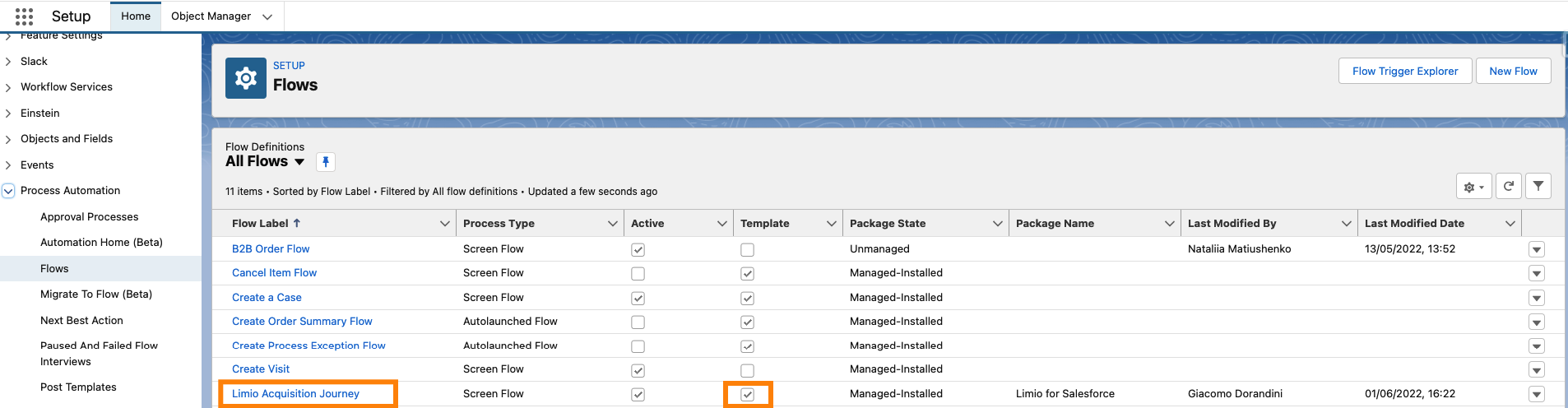
When Limio for Salesforce is installed, the flow is created in the org as "Limio Acquisition Journey", and can be found in the list of flows.
Because this flow is a template one, it can be copied and customised to accommodate for customer specific requirements, that are not necessarily part of the master flow.
This document provides an overview of the master flow, what its component are for, and where to add customisations, if required.
## Flow Overview
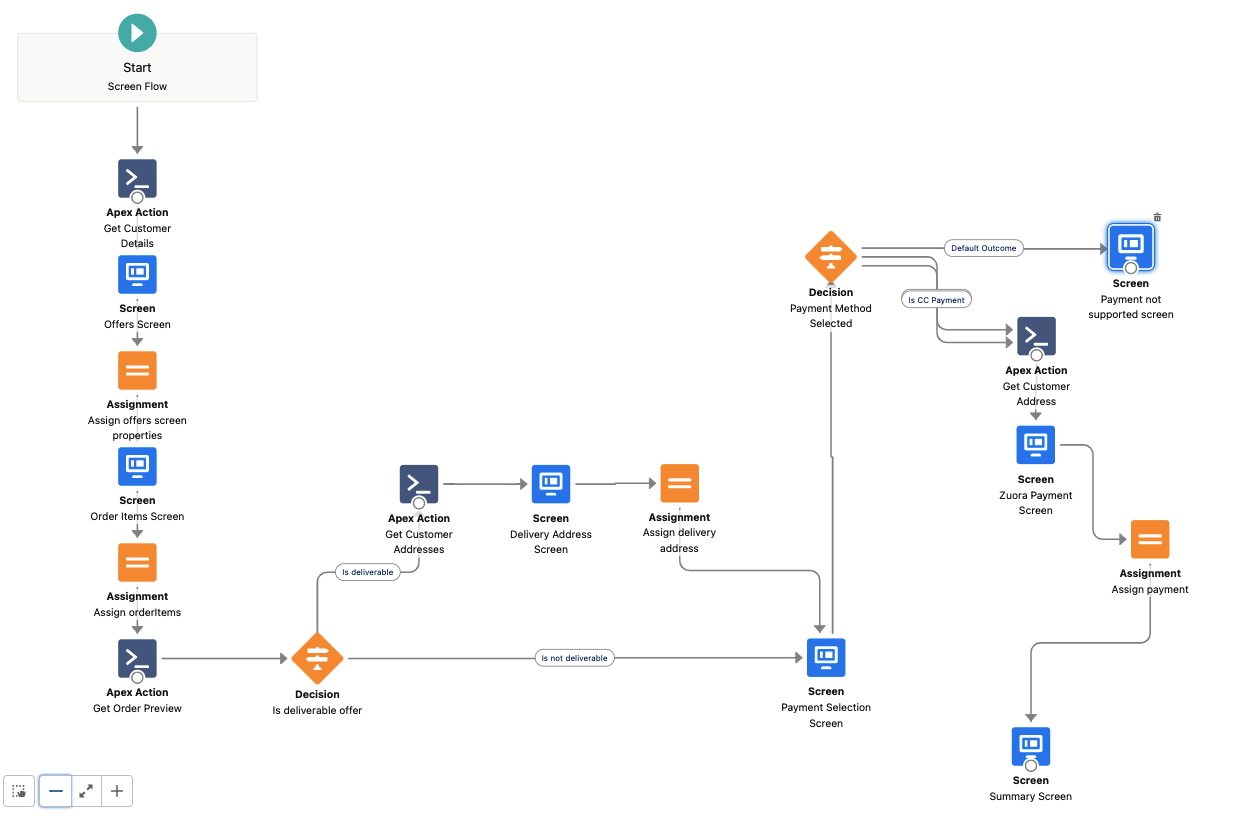
Overall, the acquisition journey consists of the following steps:
* search for the relevant offer from the Limio offer catalog
* customise the relevant information such as quantity
* specify a payment method
* submit the order
### Pre-requisite: Pass the recordId
The flow is designed to work in the context of a Salesforce a Person Account, Contact, or Case record. As such, the input variable recordId must be populated with a respective Salesforce record Id at the beginning of the flow.
### Step: Default Customer Country
The default customer country is retrieved in the flow from Limio with the Apex action **Get Customer Details**. This is the purchase country associated to the customer record in Limio.
The default country being used can be changed, see the relevant article [Default Country](https://docs.limio.com/salesforce/agent-assisted-ordering/acquisition-flow/default-country.md)
### Step: Offer Selection
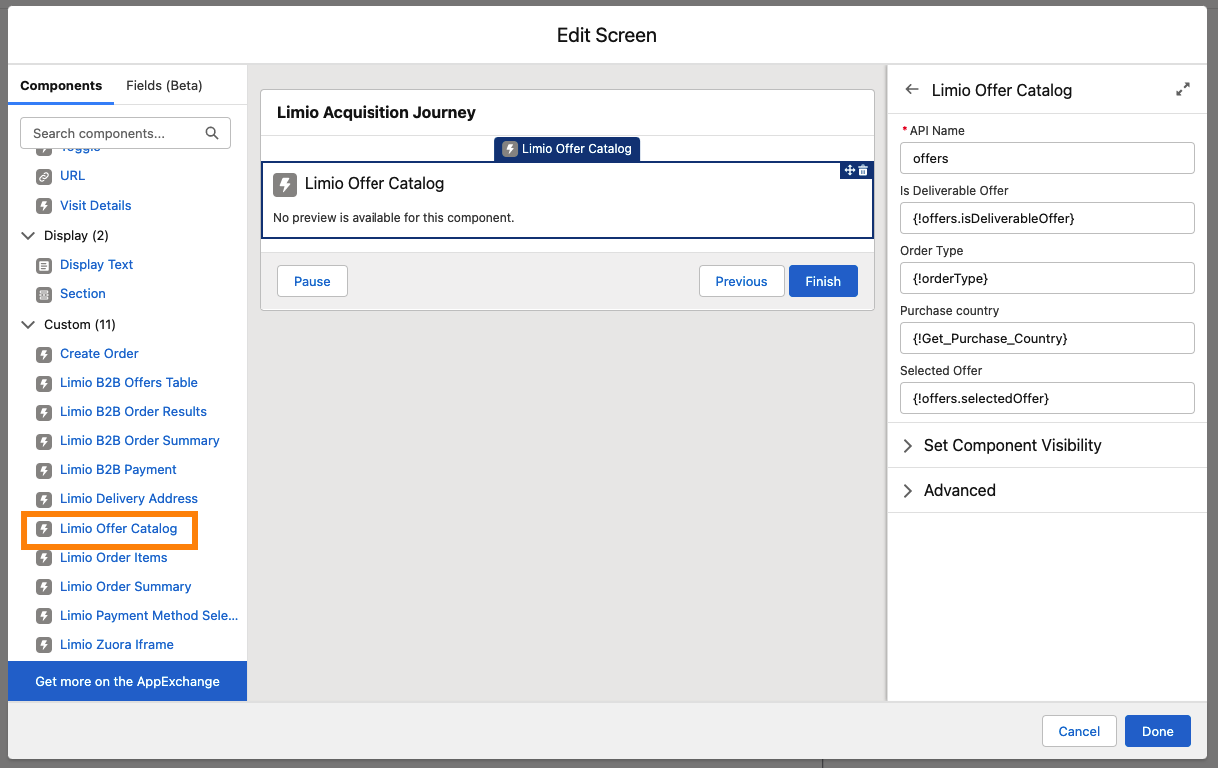
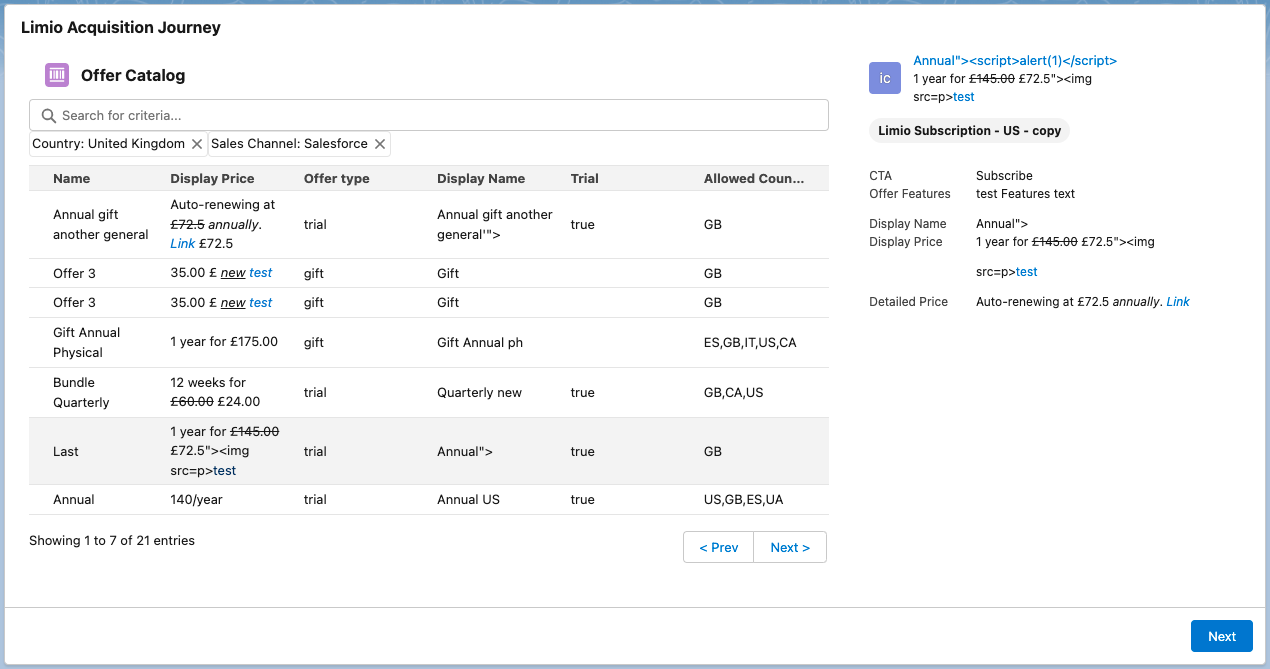
From v14.05, the **Offers Screen** of the packaged flow shows the **Limio Offers Table** and **Limio Cart Items**. The agent selects an offer in the table, and the cart shows it. Before v14.05, the flow used the **Limio Offer Catalog** component.
The table shows published offers only. In the cart, the agent can add published add-ons only. If an offer is missing, publish it from the Limio Catalog. See [Manage Versions with Publish](https://docs.limio.com/product/pricing/how-to-manage-offers-and-add-ons-versions-with-publish) and [Offers Missing from the Offer Catalog](https://docs.limio.com/salesforce/support/troubleshooting/offers-missing-from-catalog.md).
This component loads the offers catalog from Limio. The default country the catalog is initiated with is the one retrieved in the previous step.
To move on to the next step, the agent must select an offer in the table.
### Step: Order Data
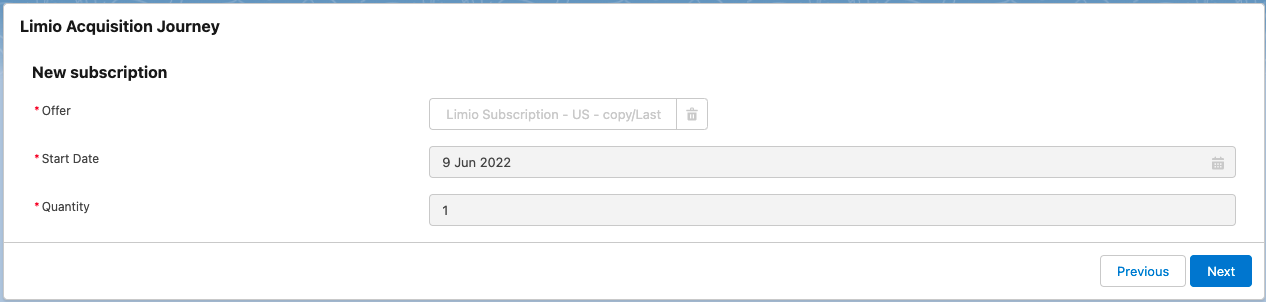
For an acquisition journey, the agent can set the start date and the quantity of the selected offer.
From v14.08, the agent sets the start date in the **Effective Date Picker** on the **Offers Screen**. In the packaged flow, **Allow users to choose start date** is on. To limit the dates, set **Maximum allowed start date (number of days in future)** and **Minimum allowed start date (number of days in past)** on the component. In a copy of the flow made from v14.02 to v14.07, the agent cannot change the start date. In a copy made before v14.02, see [Start Date Range](https://docs.limio.com/salesforce/agent-assisted-ordering/acquisition-flow/subscription-start-date-range.md).
The quantity is editable only if the selected Limio offer has the **Allow Multibuy** property set to true. If not, the quantity is read only and set to 1.
### Optional Step: Delivery Address
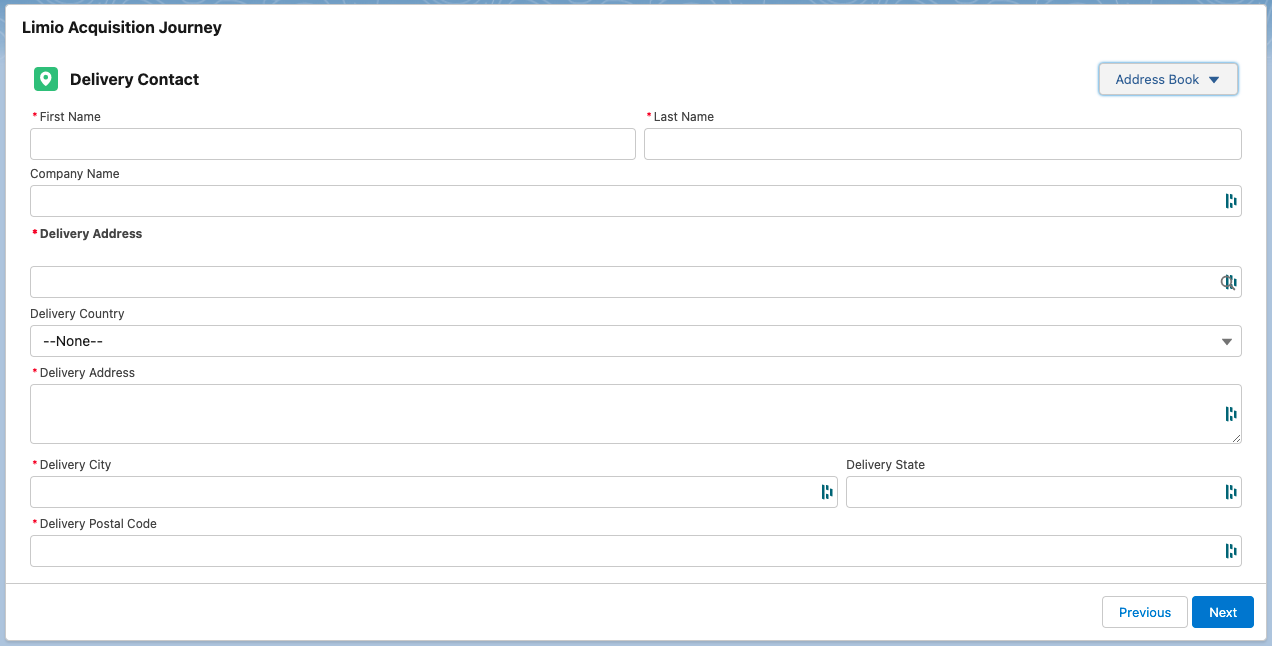
If the selected offer includes a physical product (e.g. magazine) that requires a delivery address, the delivery address component is shown on the next step.
The Apex action **Get Customer Addresses** gets the address book from Limio. It returns up to 25 addresses for each customer record in Limio.
This list can be customised, see the relevant article [Address Book](https://docs.limio.com/salesforce/setting-up/additional-config/addresses/add-addresses-to-address-book.md)
### Step: Payment Selection
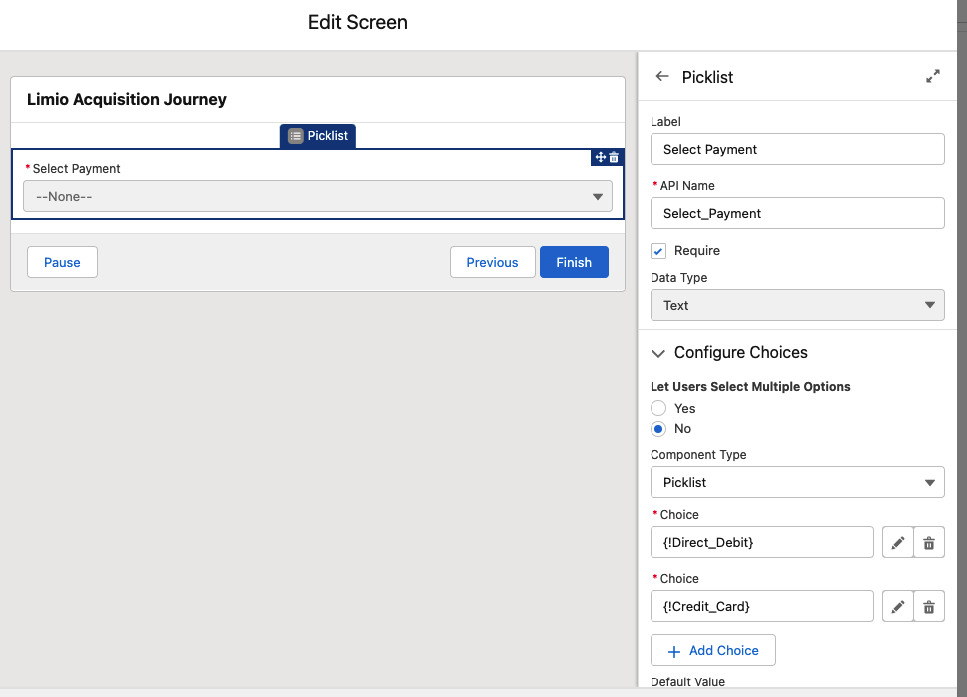
This step shows the supported payment methods.
From v14.41, the packaged flow runs this step in the **Limio Order Payment Subflow**. The subflow shows the payment methods that your [payment provider](https://docs.limio.com/salesforce/setting-up/detailed-salesforce-setup/payment-providers.md) supports. The names of the payment methods come from custom labels, for example `credit_card`, `direct_debit` and `invoice`. To change a name, see [Package Translations](https://docs.limio.com/salesforce/setting-up/detailed-salesforce-setup/package-translations.md).
A copy of the flow that you made before v14.41 keeps its own payment screens. In that copy, the payment methods are picklist choices that you can change in Flow Builder.
Once the relevant payment method is selected, click next to navigate to the dedicated payment capture page.
### Step: Supported Payments
Supported payment options include
* credit card (via Zuora iframe)
* direct debit (via Zuora iframe)
* Stripe Payment Element (via Stripe iFrame) — see [Set Up Stripe Payments for Salesforce](https://docs.limio.com/salesforce/setting-up/detailed-salesforce-setup/stripe-payments-for-salesforce.md)
* checkout link generation (learn more about this feature here: [Checkout Link](https://docs.limio.com/salesforce/agent-assisted-ordering/generate-checkout-link.md))
* invoice (learn more about this feature here: [Invoice](https://docs.limio.com/salesforce/setting-up/additional-config/payment-methods/invoice-payment-method.md))
More payments can be added to the flow, see the dedicated section here: [Additional Payment](https://docs.limio.com/salesforce/setting-up/additional-config/payment-methods/capture-additional-payment.md).
#### Stripe Payment Element
From v13.91, when Stripe is the payment provider, the Stripe Payment Element shows on the Flow screen, and Stripe collects the card details. The payment goes through the Limio Stripe Connect integration. No Zuora HPM setup is necessary. See [Set Up Stripe Payments for Salesforce](https://docs.limio.com/salesforce/setting-up/detailed-salesforce-setup/stripe-payments-for-salesforce.md) for configuration details.
#### Zuora iframe - Credit Card
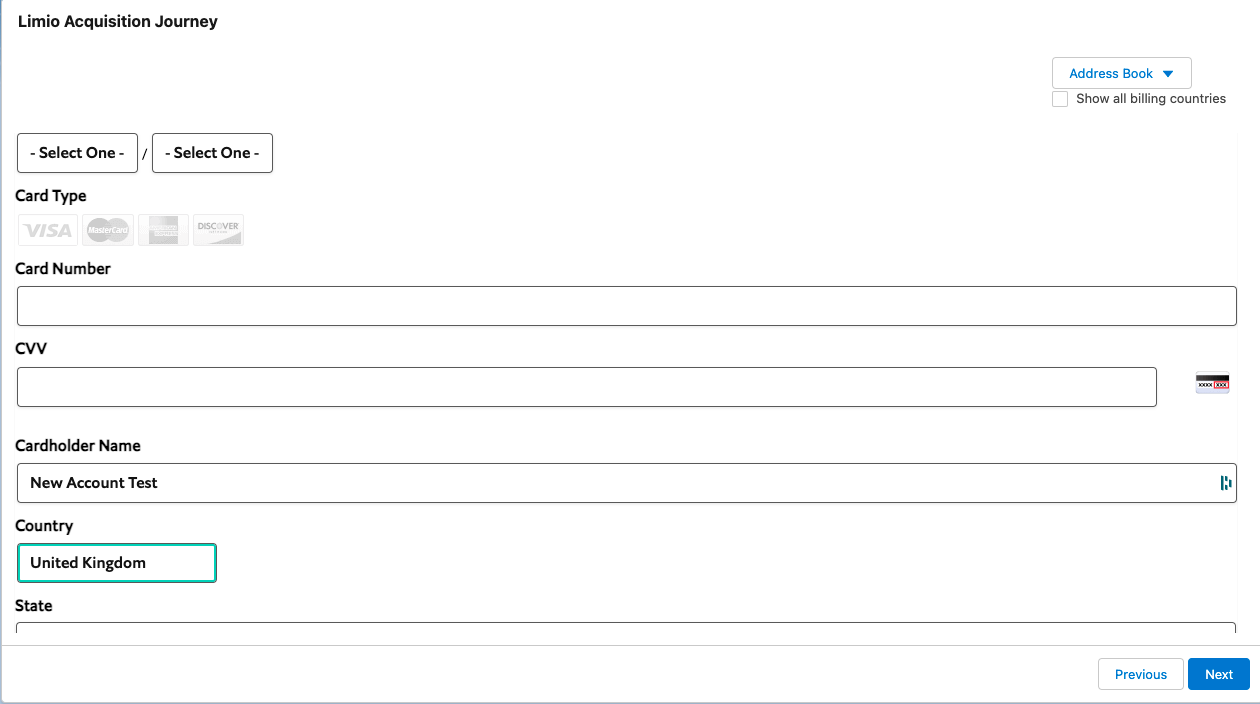
The credit card Zuora iframe is loaded with the following information:
* pre filled cardholder name from the contact/person account the case is linked to
* pre filled email from the contact/person account the case is linked to
* countries from the list of allowed countries for the selected offer, as specified in the first step
* address book: list of addresses stored for the customer record in limio, if anything. You can customise this list to also show entries from other Salesforce records. See [Address Book](https://docs.limio.com/salesforce/setting-up/additional-config/addresses/add-addresses-to-address-book.md)
### Step: Order Summary
From v14.41, the packaged flow shows this step in the **Limio Order Confirmation Subflow**.
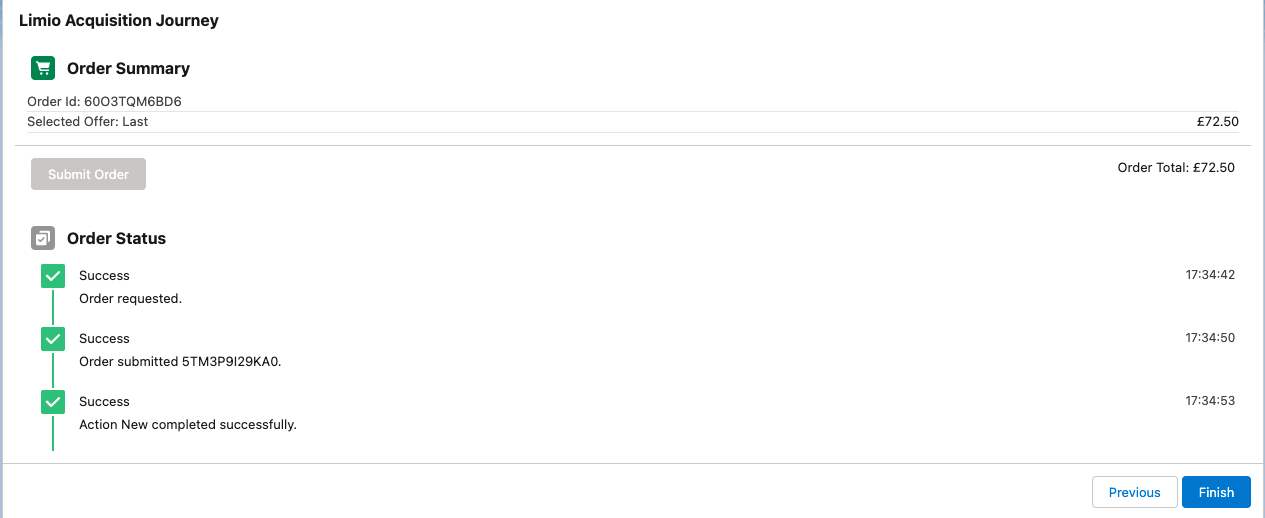
In the last step a summary of the order is shown, with the selected offer and total to pay. At this point the user only needs to submit the order, and they'll receive immediate feedback about the order submission to limio. This is the last and final step of the flow. The subscription is now created.
---
# Agent Instructions
This documentation is published with GitBook. GitBook is the documentation platform designed so that both humans and AI agents can read, navigate, and reason over technical content effectively. Learn more at gitbook.com.
## Querying This Documentation
If you need additional information that is not directly available in this page, you can query the documentation by asking a question.
Perform an HTTP GET request on the following URL with the `ask` and `goal` query parameters:
```
GET https://docs.limio.com/salesforce/agent-assisted-ordering/acquisition-flow.md?ask=&goal=
```
`ask` is the immediate question: it should be specific, self-contained, and written in natural language.
`goal` is what the user is ultimately trying to achieve, the reason they need the answer. Sharing it helps GitBook give you a better, more relevant answer. A goal is most helpful when it describes the outcome the user wants rather than restating the question. For example, with `ask=how do I create an API token`, a goal like `automate deployments from our CI pipeline` lets GitBook tailor the answer to that use case.
The response will contain a direct answer to the question and relevant excerpts and sources from the documentation.
Use this mechanism when the answer is not explicitly present in the current page, you need clarification or additional context, or you want to retrieve related documentation sections.