> For the complete documentation index, see [llms.txt](https://docs.limio.com/llms.txt). Markdown versions of documentation pages are available by appending `.md` to page URLs; this page is available as [Markdown](https://docs.limio.com/product/settings/how-to-set-up-localisation/how-to-configure-tax-behaviour-for-tax-exclusive-countries.md).
# Configure Tax Behaviour
**Purpose:** Use these settings to determine if prices are displayed with or without tax added for certain territories.
{% hint style="info" %}
**Scope of Limio tax configuration:** Limio's tax settings are **country-level only**. You can control whether prices are shown tax-inclusive or tax-exclusive per country, and whether tax is previewed during checkout.
Limio does **not** support:
* Different tax rates per product
* Product-level tax exemptions
* Person vs. company tax distinctions
If your business requires product-level tax rules or person/company distinctions, configure these in your billing systems (e.g. **Zuora** or **Stripe Billing**), which handle the actual tax calculation and apply them at the point of billing.
{% endhint %}
**Steps:**
1: Click on the profile icon in the top-right corner of the app.
2: Click on the **Developer** option in the dropdown.
3: Click **General Settings**, then **Localisation** and find the section named **Tax Behaviour**.
4: Don't forget to save the changes by clicking the **Save** button in the top-right of the page.
5: If you have just configured this feature and would like to see it on published pages, the relevant pages must be rebuilt and republished to utilise the changes.
### Configure tax in acquisition components
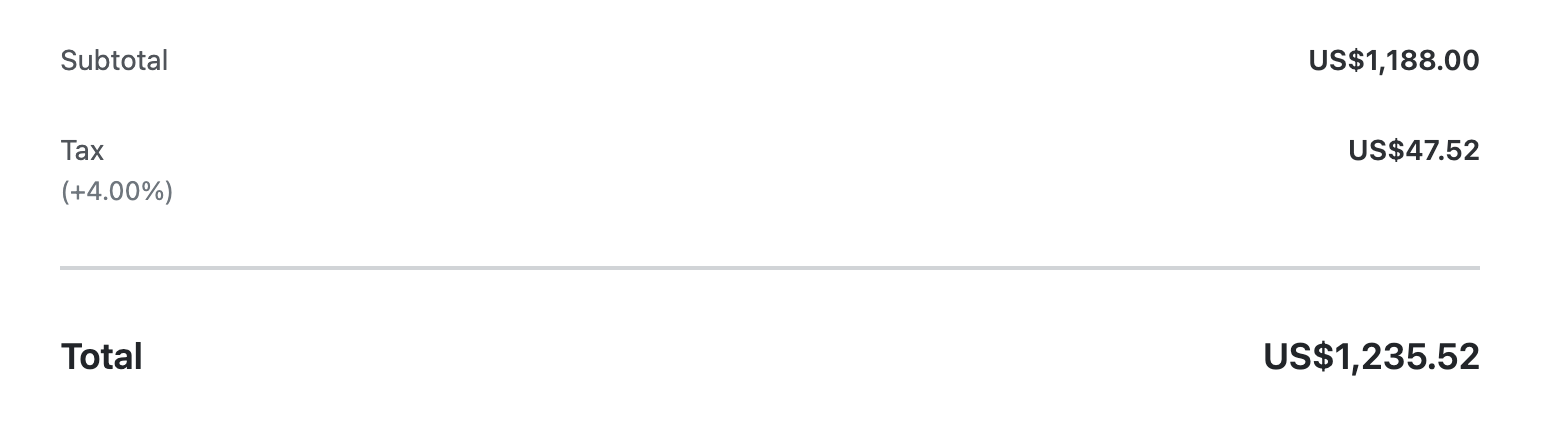
The [Cart Summary](https://docs.limio.com/components/component-library/cart-components/component-cart-summary) component uses the **"Preview tax on the order during checkout"** setting to display and calculate tax during checkout. Add any country where you want customers to see a tax preview in the Cart Summary — for example, the US (tax-exclusive) or Germany (tax-inclusive with VAT).
The Cart Summary component documentation explains how tax display behaves across different checkout states, including:
* Before an address is collected (based on the customer's `limio-country` cookie)
* After billing or delivery address is populated (calculated from postal code)
* Dynamic recalculation when the customer changes address fields
See the full breakdown in the [Cart Summary component documentation](https://docs.limio.com/components/component-library/cart-components/component-cart-summary).
### Configure tax in self-service components
For the following components:
* [Payments Table](https://docs.limio.com/components/component-library/standard-components/component-payments-table)
* [Switch Subscription](https://docs.limio.com/components/component-library/standard-components/component-switch-subscription)
* [Cancel Save Offer](https://docs.limio.com/components/component-library/standard-components/component-cancel-save-offer)
* [Order Change Success](https://docs.limio.com/components/component-library/standard-components/component-order-change-success)
* [Orders Table](https://docs.limio.com/components/component-library/standard-components/component-orders-table)
* [Subscription Description](https://docs.limio.com/components/component-library/standard-components/component-subscription-description)
* [Subscription Info](https://docs.limio.com/components/component-library/standard-components/component-subscription-info)
* [Change Order Table](https://docs.limio.com/components/component-library/standard-components/component-order-change-table)
If the customer's billing address matches with a country listed in the section "**Display the tax-exclusive price as the final price on self-service components if your customers are in one of these countries**", then the prices in the components listed originally will be displayed without tax added.
The default options here are the United States of America and Canada, but you may want to remove all countries entirely depending on your tax requirements.
### Configure tax in Apple Pay modal
This impacts how prices are displayed in any Cart or Checkout components.
**Steps**:
1: Click on the profile icon in the top-right corner of the app.
2: Click on the **Developer** option in the dropdown.
3: Click **General Settings**, then **Localisation** and find the section named **Tax Behaviour**.
If the customer's Apple Pay address matches one of the countries in "Preview tax on the order during checkout if your customer is in one of the countries below", then tax will be included in the Apple Pay modal.
4: Don't forget to save the changes by clicking the **Save** button in the top-right of the page.
5: If you have just configured this feature and would like to see it on published pages, the relevant pages must be rebuilt and republished to utilise the changes.
---
# Agent Instructions
This documentation is published with GitBook. GitBook is the documentation platform designed so that both humans and AI agents can read, navigate, and reason over technical content effectively. Learn more at gitbook.com.
## Querying This Documentation
If you need additional information that is not directly available in this page, you can query the documentation dynamically by asking a question.
Perform an HTTP GET request on the current page URL with the `ask` query parameter, and the optional `goal` query parameter:
```
GET https://docs.limio.com/product/settings/how-to-set-up-localisation/how-to-configure-tax-behaviour-for-tax-exclusive-countries.md?ask=&goal=
```
`ask` is the immediate question: it should be specific, self-contained, and written in natural language.
`goal` is optional and describes the broader end goal you are ultimately trying to accomplish on behalf of the user. GitBook uses it to tailor the answer towards what is most useful for that goal.
The response will contain a direct answer to the question and relevant excerpts and sources from the documentation.
Use this mechanism when the answer is not explicitly present in the current page, you need clarification or additional context, or you want to retrieve related documentation sections.
.png?alt=media)
.png?alt=media)