> For the complete documentation index, see [llms.txt](https://docs.limio.com/llms.txt). Markdown versions of documentation pages are available by appending `.md` to page URLs; this page is available as [Markdown](https://docs.limio.com/product/page-builder/page-builder-overview-of-key-features/updating-page-styling-using-the-style-editor.md).
# Configure Styling
You can update your page's look and feel using CSS from the style editor in the Page Builder.
Open the style editor by clicking on Style in the top navigation. Once the Style editor is open, you can add the relevant CSS.
You can preview what your page will look like on Mobile or Tablet by selecting the device.
Don't forget to save any edits you make.
### Using Global Styles in Limio
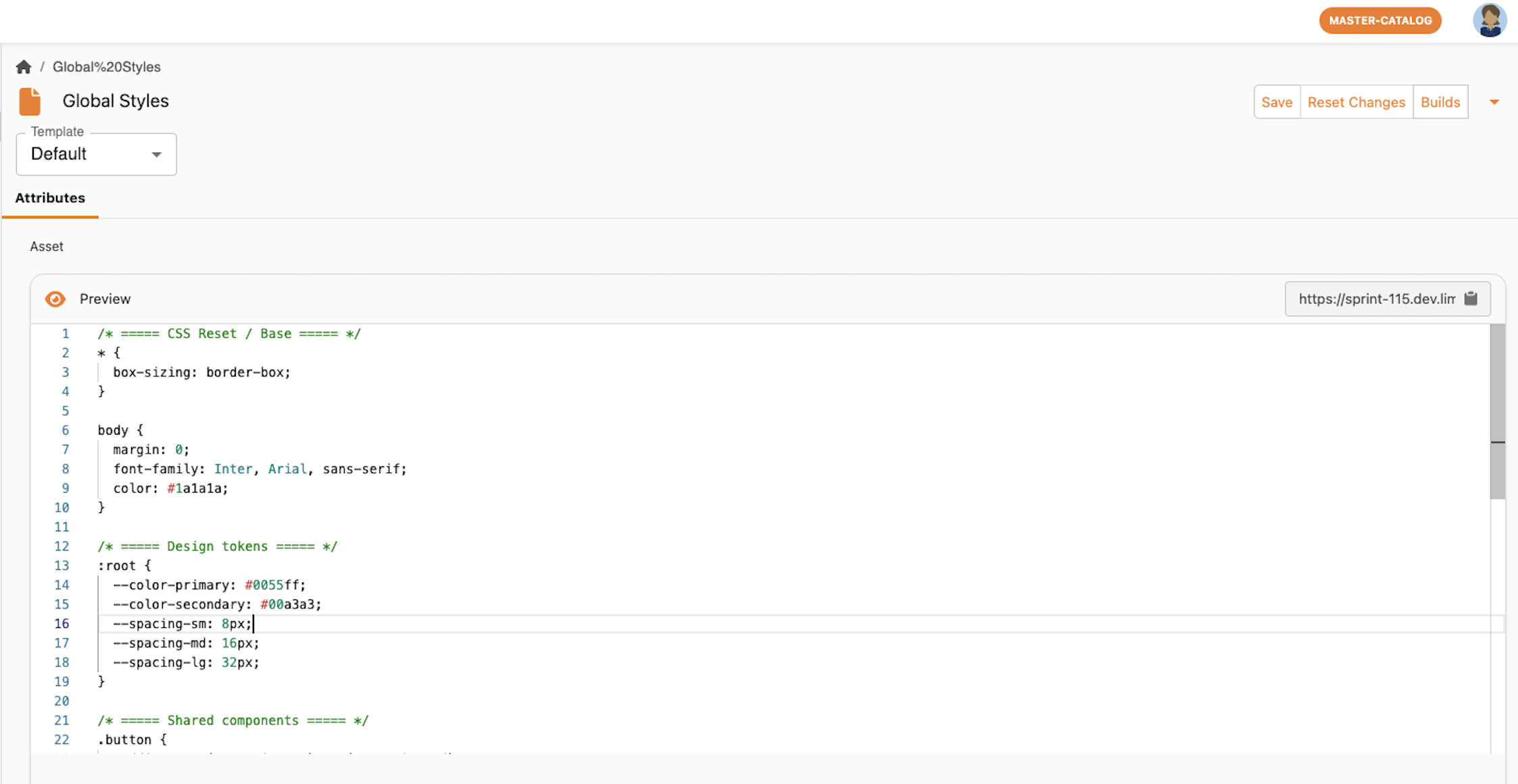
You can create a global stylesheet and reuse it across multiple pages by importing it into each page’s style editor. This helps keep styling consistent and easier to maintain.
Follow the steps below to set this up.
#### 1. Create your global CSS file
Start by creating a CSS file that contains styles to be shared across pages, such as base typography, design tokens, and common components.
Example:
```
body {
margin: 0;
font-family: Inter, Arial, sans-serif;
color: #1a1a1a;
}
/* ===== Design tokens ===== */
:root {
--color-primary: #0055ff;
--color-secondary: #00a3a3;
--spacing-sm: 8px;
--spacing-md: 16px;
--spacing-lg: 32px;
}
/* ===== Shared components ===== */
.button {
padding: var(--spacing-sm) var(--spacing-md);
border-radius: 4px;
background: var(--color-primary);
color: white;
border: none;
}
/* ===== more global styles ===== */
...
```
#### 2. Upload the stylesheet as an asset
1. In the Limio sidebar, navigate to **Assets**.
2. Create a new asset (for example, **Global Styles**).
3. Drag and drop your global CSS file into the asset upload area.
4. Save the asset.
5. Copy the asset URL from the clipboard icon on the right-hand side.
#### 3. Import the global stylesheet into a page
1. Navigate to the page where you want to apply the global styles.
2. Open the page’s **Style Editor**.
3. Import the global stylesheet using the asset URL you copied, for example:
#### 4. Verify the styles
Once imported, the global styles should be applied to the page. You can still add page-specific styles below the import to override or extend the global styles as needed.
---
# Agent Instructions
This documentation is published with GitBook. GitBook is the documentation platform designed so that both humans and AI agents can read, navigate, and reason over technical content effectively. Learn more at gitbook.com.
## Querying This Documentation
If you need additional information that is not directly available in this page, you can query the documentation dynamically by asking a question.
Perform an HTTP GET request on the current page URL with the `ask` query parameter, and the optional `goal` query parameter:
```
GET https://docs.limio.com/product/page-builder/page-builder-overview-of-key-features/updating-page-styling-using-the-style-editor.md?ask=&goal=
```
`ask` is the immediate question: it should be specific, self-contained, and written in natural language.
`goal` is optional and describes the broader end goal you are ultimately trying to accomplish on behalf of the user. GitBook uses it to tailor the answer towards what is most useful for that goal.
The response will contain a direct answer to the question and relevant excerpts and sources from the documentation.
Use this mechanism when the answer is not explicitly present in the current page, you need clarification or additional context, or you want to retrieve related documentation sections.
.png?alt=media)
.png?alt=media)
.png?alt=media)